How to track AI Mode and AI Overviews
How to track AI Mode and AI Overviews in Google Search Console, what Bing Webmaster Tools adds, what the reports leave out, and how to fill the gaps.
 Steen Stones · Reviewed
Photo: Luca Sammarco / Pexels
To track AI Mode, open the generative AI performance report in Google Search Console. It shows how often Google showed links to your website in AI Mode and AI Overviews, by page, country, device and date. It counts the two together: there is no filter for AI Mode on its own, and no list of the searches. To see what AI Mode says about you, ask it your buyers’ main questions yourself and record the answers. For Copilot and Bing’s AI summaries, use the AI Performance report in Bing Webmaster Tools. Neither report shows whether the answer recommended you.
Avouch’s free scan shows which companies AI recommends in your market.
What each report shows
| Google Search Console | Bing Webmaster Tools | |
|---|---|---|
| AI answers covered | AI Overviews and AI Mode | Microsoft Copilot, Bing’s AI summaries and some partner services |
| What it counts | Impressions: the times a link to your website was shown | Citations: the times your content was shown as a source |
| How you can break it down | Pages, countries, devices and dates | Pages, a sample of the searches that found your content, and topics |
| What it does not show | Which searches led to it, clicks, or whether you were recommended | Where the citation sat in the answer, or whether you were recommended |
Keep the two sets of numbers apart. Google counts links shown and Bing counts citations, so adding them together gives a number that means nothing.
1. Read Google’s generative AI performance report
Google made this report available to all websites on 31 August 2026. Open it in Search Console and look at:
- Total impressions: how many times a link to your website appeared in AI Overviews or AI Mode. If two of your pages appear in the same answer, the chart counts one impression.
- Pages: which pages AI Overviews and AI Mode linked to.
- Countries and devices: where the searches came from.
Three things to know:
An impression is not a visit. It means the link was shown, not clicked.
These impressions are already in your main Performance report. Do not add them to it.
No report usually means too few impressions. Google also says a missing report can mean your website is excluded from its AI features. Our guide to stopping Google using your content in AI Overviews explains the settings.
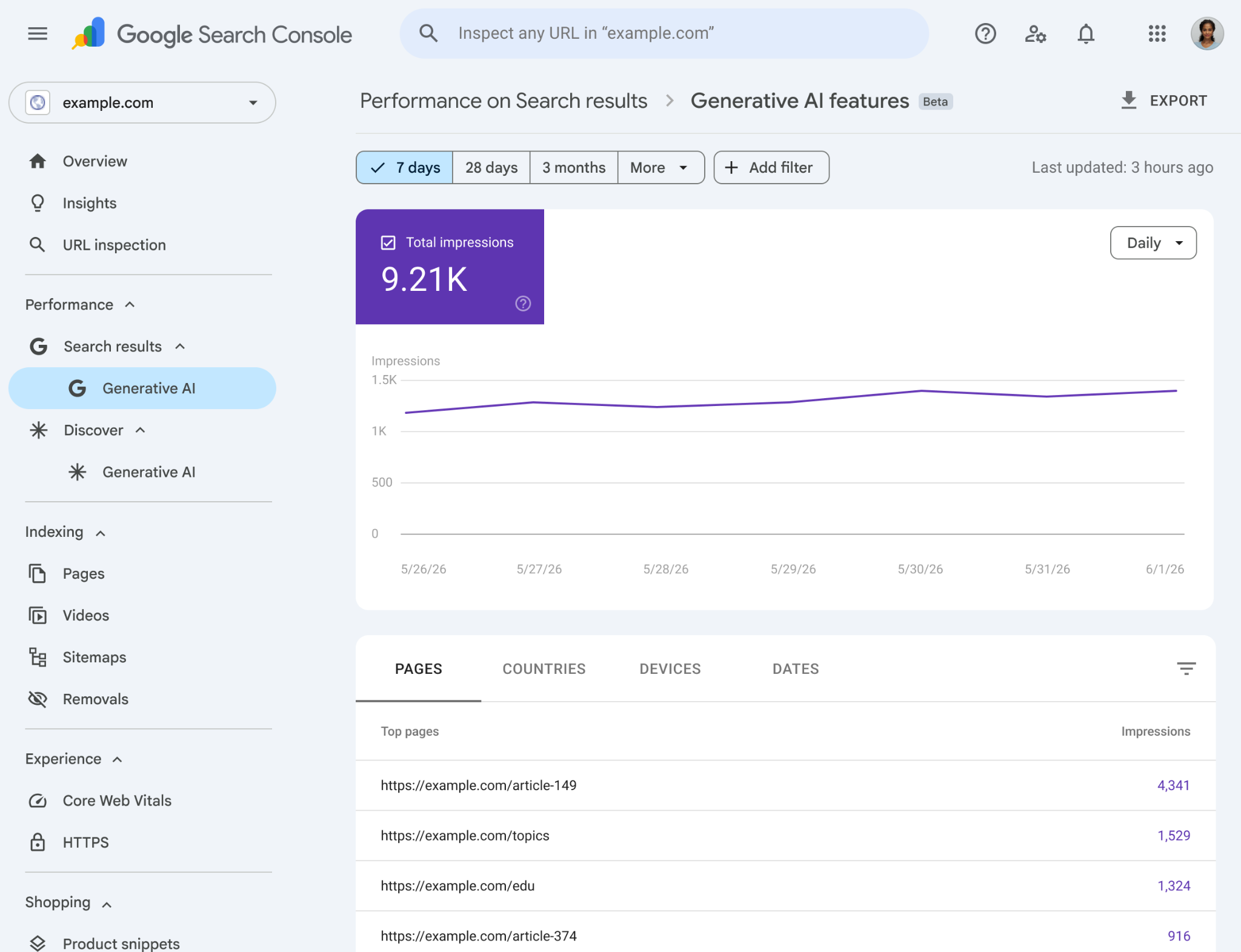
Where to look in Google Search Console
Google’s published example, June 2026. The figures are demonstration data, not Avouch results. The image is unchanged.
 Open full-size screenshot in a new tab
Select the screenshot to enlarge it.
- Total impressions
- Counts the times links to your website were shown. An impression is not a visit.
- Pages, countries and devices
- Show where the impressions came from. There is no tab for the searches themselves.
Source: Google Search Central, CC BY 4.0
2. Read Bing’s AI Performance report
Verify your website in Bing Webmaster Tools first. Our guide Does ChatGPT use Bing? shows how. The AI Performance report then shows:
- Total citations: how often your content was a source in Copilot, Bing’s AI summaries and some partner services.
- Pages: which of your pages were cited.
- Grounding queries: a sample of the searches the AI used to find your content.
- Topics (beta, from October 2026): your citations grouped into topics, with “opportunity queries”, the searches where other websites are cited and yours is not.
Bing says a citation count does not show where the citation sat in the answer or how it was presented. The topic figures are estimates, and smaller websites may see few topics or none.
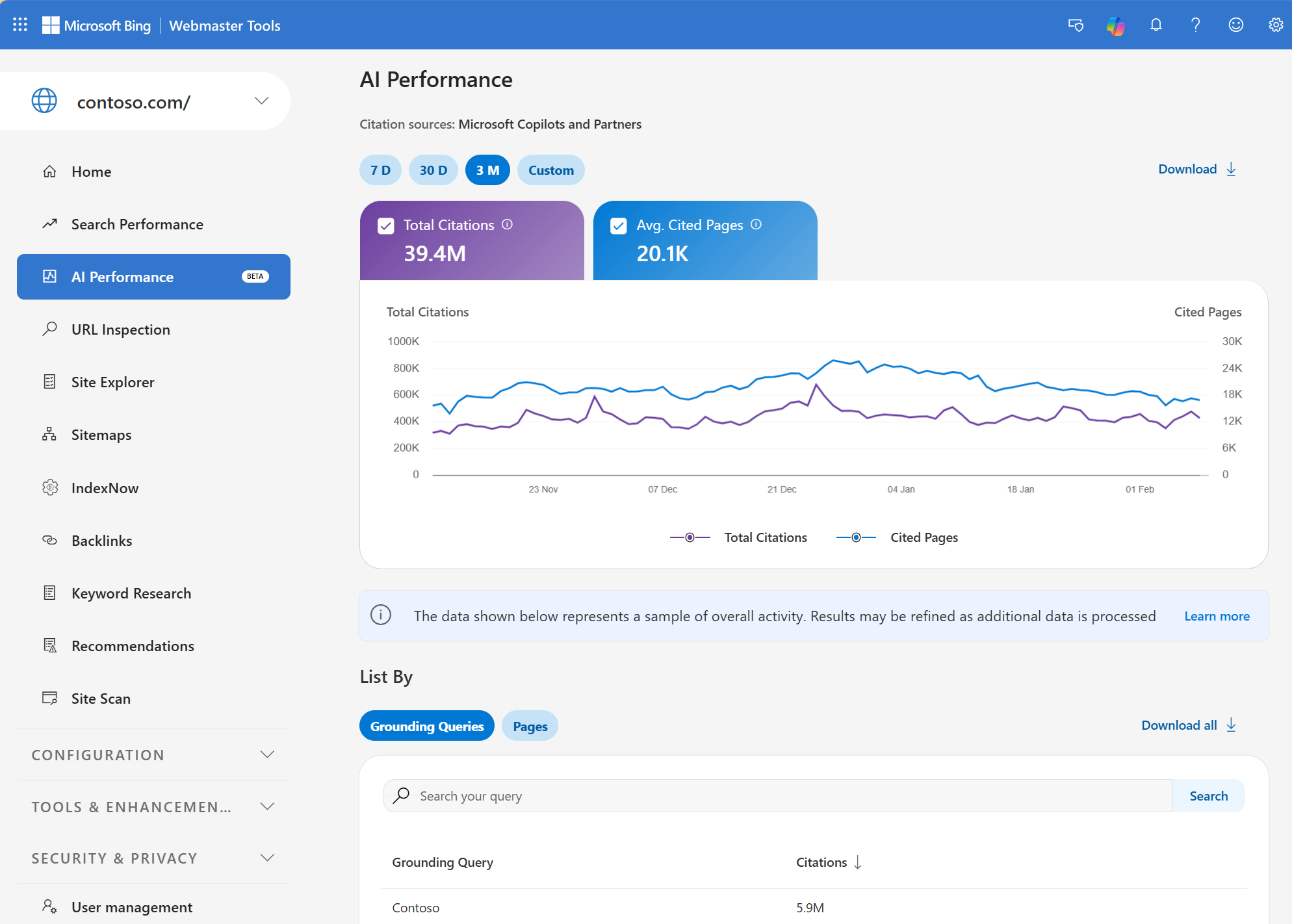
Where to look in Bing Webmaster Tools
Microsoft’s published preview example, February 2026, using the sample site contoso.com. These are example figures, not Avouch results. The image is unchanged.
 Open full-size screenshot in a new tab
Select the screenshot to enlarge it.
- Total Citations
- Counts references in supported AI answers. It does not show placement or whether you were recommended.
- Grounding Queries and Pages
- Queries show a sample of the searches the AI used. Pages show which of your pages were cited.
Source: Microsoft Bing Webmaster Blog
3. Check your buyers’ questions yourself
Neither report tells you what the answer said about your company. Search the 10 to 20 questions your buyers ask most, and for each one record:
Whether an AI Overview appears, and what AI Mode says.
Which websites the answer cites.
Which companies it names, and which it recommends.
Google says results depend on the time, the place, the device and the person’s search history, so one check is a sample, not the full picture. Some SEO tools record whether an AI Overview appears for the keywords you track and which websites it cites. Ask how often they check and from which country. Our guide to checking what AI says about your company shows a simple method, and our guide to AI visibility metrics explains how to count the results.
4. Connect visibility to visits and enquiries
Google suggests Google Analytics for what people do after they reach your website. Keep three numbers separate:
- Shown: impressions in Google, citations in Bing.
- Clicked: clicks from search results.
- Acted: enquiries and other actions on your website.
A rise in impressions with no change in enquiries tells you something different from a rise in both.
How Avouch can help
In the Growth Stress Test, we check what Google’s AI Overviews and other AI tools say in answer to your buyers’ questions, and which companies they recommend. As part of website and SEO work, we can set up these reports and read them with you, with scope and price agreed before we start.
Want to know where you stand?
Start with the free scan. To see where you lose buyers, from the AI shortlist to the follow-up, choose the paid Growth Stress Test.