
How to see Google’s query fan-out: a step-by-step guide
Five steps to see which pages Google’s AI Mode uses for one buying question, and turn them into a page change, plus an optional test that records Gemini’s actual searches.
 Steen Stones · Reviewed
Photo: Leeloo The First / Pexels
Google does not show the searches AI Mode runs behind an answer. You can still see their result: the pages it links to. Ask one buying question in AI Mode, open every linked page, write down which part of the question each page answers, then improve the page on your site that should answer it. If you need the exact search wording, run the same question through Gemini with Google Search grounding, which returns its searches.
Avouch is an AI SEO agency for tech companies. We run this check for the questions our clients’ buyers ask. Query fan-out itself is explained in our guide what is query fan-out?
Step 1: choose one question your buyer would ask
Use a question someone asks before they choose a supplier, and leave your company name out. Our practice example: “Which project management software suits a small team working across countries?” Paste it into the first row of the worksheet and keep the same wording all the way through.
Step 2: ask AI Mode and save the answer
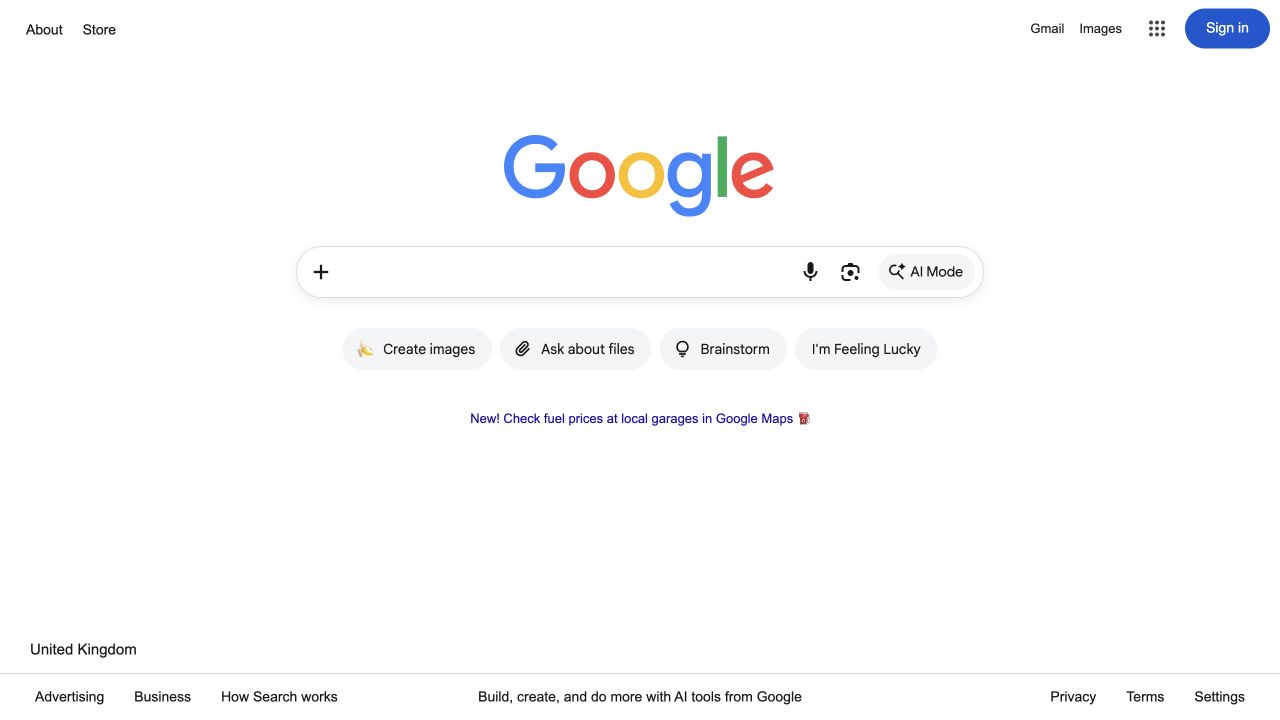
Open Google, choose AI Mode beside the search box and enter the question. Save a copy of the answer with its links, and write “Google AI Mode” and the date in the worksheet. Keep this first answer apart from any follow-up questions.
AI Overviews and AI Mode can give different answers and links, because Google says they may use different models and techniques. In our tracking, only 19% of the websites the two cited for the same question on the same day were the same, so record which one you used.
Find AI Mode beside the Google search box
Google desktop, captured 8 October 2026 while signed out; the AI Mode button was still on Google’s homepage when we checked on 23 October. Layouts can differ.
 Open full-size screenshot in a new tab
Select the screenshot to enlarge it.
- Click AI Mode
- It sits beside the search box. This is where the main exercise starts.
- Use the same question
- Keep the wording identical each time, so your saved answers can be compared.
Source: Google
Step 3: open every linked page
Open each supporting link. Save its address, and write the part of the buyer’s question it answers as a short question, such as “Does it work with the tools we already use?” Check the page itself before you accept what the answer says about it.
This shows the pages AI Mode chose, not every search it ran. Google says AI Mode issues several related searches across subtopics and sources, and the links are the visible end of that process.
Step 4: group the questions and choose one page to improve
Put similar questions together, such as cost, setup, working together and support. Beside each group, name the page on your site that should answer it. Then pick one gap to fix first.
| Buyer question | Group | Page change |
|---|---|---|
| Does it connect to the tools we already use? | Integrations | Add a list of supported tools and how to set each one up |
| How do colleagues in different time zones work together? | Working together | Explain handovers and shared updates |
| What will setup involve? | Setup | Add a clear setup checklist |
Put the answer in text on the page and link to it from related pages. Google lists both among the SEO practices that still matter for its AI features.
Step 5: repeat the question, and keep the record
Ask the same question again in a fresh session on another day, and save each answer as a new row. One answer is only a sample: about half the websites AI cites for a question change from one day to the next. After you improve the page, repeat the exercise the same way, and record mentions, recommendations and citations separately. Our guide to AI visibility metrics explains the difference.
Optional: record the searches with Gemini
Gemini with Google Search grounding returns the searches it ran. In our tracking, Gemini ran a median of four searches for each answer, and 97% of its answers used more than one. Label this test “Gemini with Google Search” and keep it apart from your AI Mode results: Google does not say these are the same searches AI Mode runs.
Open Agent Studio in the Google Cloud console.
In the side panel, under Model settings, go to Grounding and turn on the Google Search toggle.
Enter your question and click Submit.
Ask your developer to save the full response from the API, the connection software uses to request an answer.
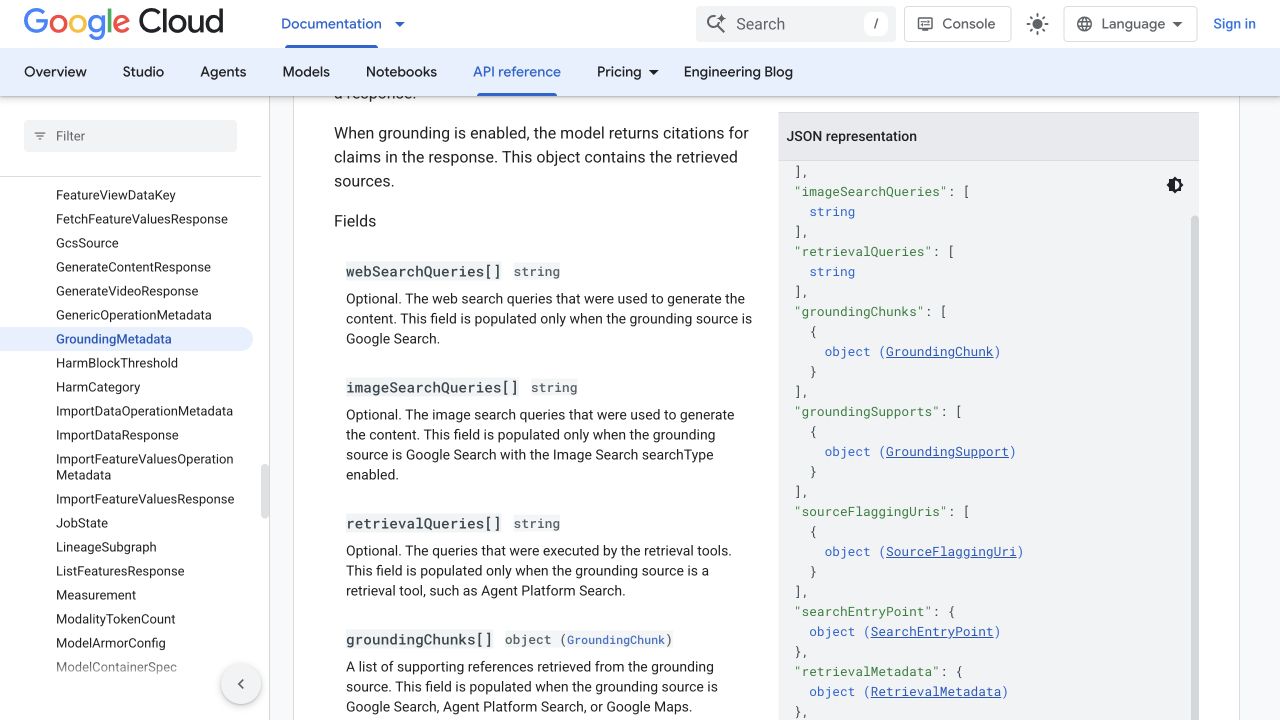
Copy webSearchQueries into its own worksheet column: Google describes it as the web search queries used to generate the answer.
Save groundingChunks beside it: the supporting pages. groundingSupports links those pages to sentences in the answer.
If no queries come back, write “none returned”. Never fill the gap with a guess.
Find webSearchQueries in Google’s field reference
Google Cloud reference, captured 8 October 2026 (CC BY 4.0); the field names were unchanged when we checked on 23 October. This is documentation, not a test result.
 Open full-size screenshot in a new tab
Select the screenshot to enlarge it.
- The searches
- webSearchQueries holds the search text. It is filled only when the grounding source is Google Search.
- The pages
- groundingChunks holds the supporting pages. It is a different list from the searches.
Grounded requests run on your Google Cloud account, so check the current costs and set a spending limit before you start. Google also requires Google Search suggestions to be turned on to use this feature.
For the same exercise in ChatGPT, see our ChatGPT query fan-out guide.
How Avouch can help
We run this check across the buying questions your customers ask, and turn what we find into content that answers them and website and SEO changes that make those pages easy to find. We also train in-house teams to run it themselves. Choose one package or several; we agree the scope and the price before work starts.
Want to talk it through?
Talk to us about the questions your buyers ask. To see first how AI tools answer them today, start with a free scan.