
ChatGPT query fan-out: a step-by-step guide
Follow the sources behind an answer, then turn what you find into better content.
 Steen Stones · Reviewed
ChatGPT can turn your question into several web searches and search again after reading the results. That is query fan-out. Start by opening its Sources panel and reading the linked pages. Use the optional technical section if you need returned search-query text.
Step 1: start with a fresh question
Start a new conversation. Use a question a buyer would ask before choosing a supplier. For this exercise, try: “Which project management software suits a small team working across countries?”
Leave your company name out. For a baseline test, we suggest turning memory off and avoiding earlier messages about your business. ChatGPT can use saved memories when rewriting searches.
Record your question, date and memory setting in a worksheet. Note the location used too, because approximate location can affect local results.
Step 2: turn on Search and send the question
Open View all tools beside the message box. Select Search. Enter your question and send it. This is the manual search route in OpenAI’s guide.
You should now have a response to save and inspect. Keep the original wording, including any caveats. Do not ask a follow-up until you have recorded this first answer.
Open View all tools
Official OpenAI help screenshot, retrieved 8 October 2026. This published example shows an earlier interface; the current help page gives the same menu route.
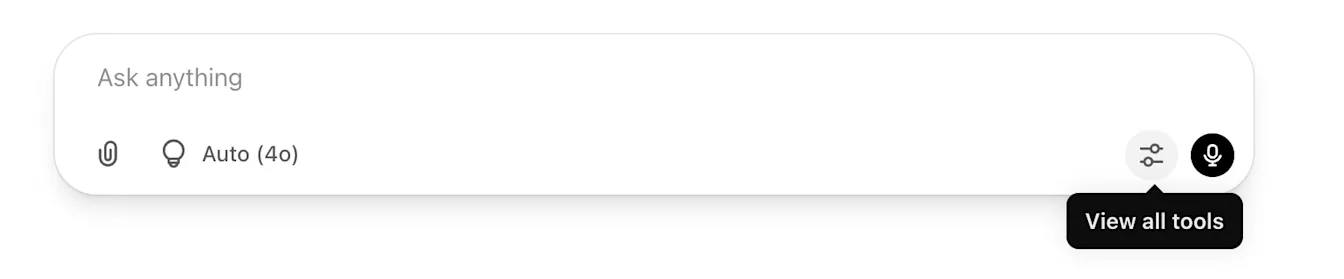 Open full-size screenshot in a new tab
Select the screenshot to enlarge it.
- Find the tools control
- Open it beside the message box, then choose Search.
Source: Original page
Choose Search
Official OpenAI help screenshot, retrieved 8 October 2026. Menu appearance and model labels may differ in your account.
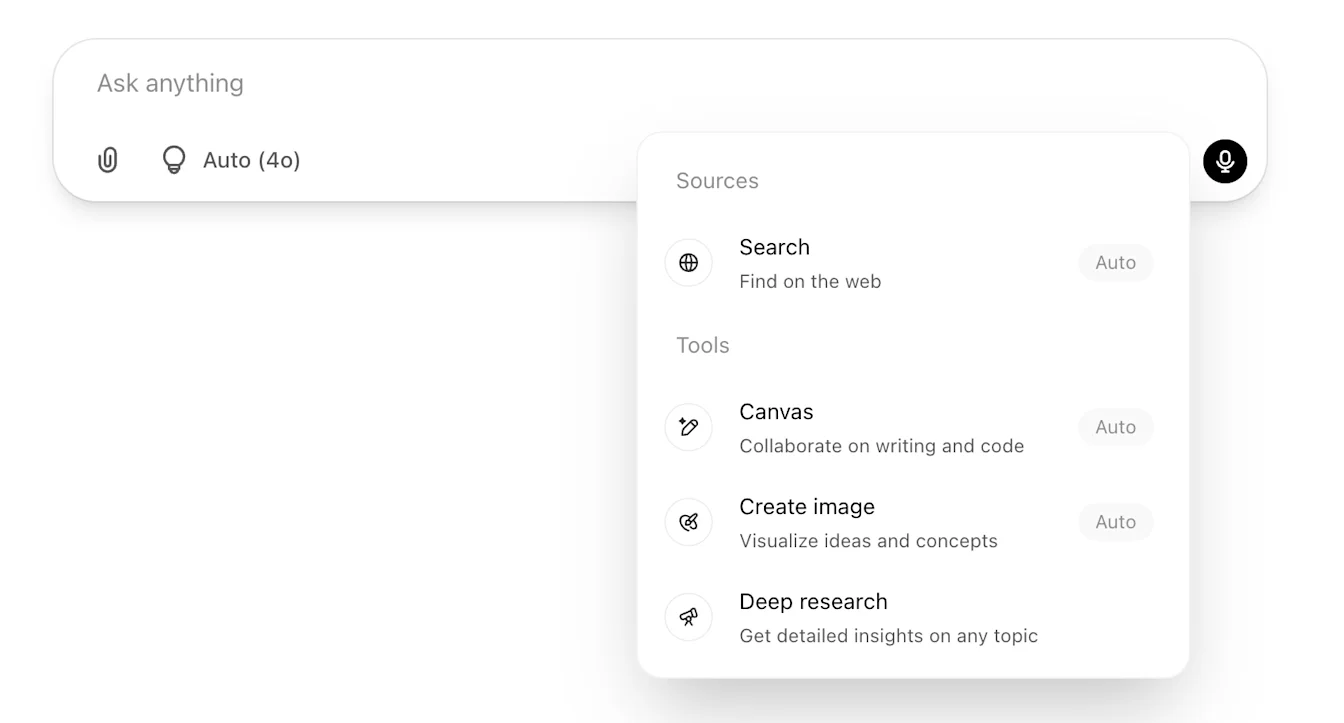 Open full-size screenshot in a new tab
Select the screenshot to enlarge it.
- Choose Search
- Look for the globe icon and “Find on the web”. You are choosing web search, not searching your old chats.
Source: Original page
Step 3: open Sources and read the pages
Select Sources when it appears with the answer. It can show cited pages and other relevant links. Open the useful pages and save their addresses.
Check whether each page supports what ChatGPT said and whether its information is current. OpenAI recommends making both checks.
In the worksheet, write the buying question each useful page helps answer. For our example, possible topics are price, integrations and working across time zones. These are planning examples, not recorded queries.
The Sources panel is a place to inspect links. It is not proof of the exact wording of every search. Keep source pages and search queries in separate columns.
Open the Sources button
Official OpenAI help screenshot, retrieved 8 October 2026. Sources appears when available with a search answer.
 Open full-size screenshot in a new tab
Select the screenshot to enlarge it.
- Open the linked pages
- Save useful page addresses and check what they actually say.
- Keep the distinction
- These are sources. They are not a list of every search query.
Source: Original page
Step 4: turn the findings into one useful page change
Group similar buying questions together. Then match each group to a page on your site. Start with a page you already have.
For example, questions about connecting tools could become an Integrations section. List the supported tools, explain the setup and say where the limits are. This is a suggested content exercise, not a claim about a particular product.
Write down the page, the question it needs to answer and the change you will make. You should finish with a practical task, not just a folder of links.
Swipe across to read all columns.
| Basis | Buyer question | Topic | Page change |
|---|---|---|---|
| Illustrative example | Does it connect to our existing tools? | Integrations | Add a supported-tools list and setup instructions |
| Illustrative example | How do colleagues in different time zones work together? | Working together | Explain handovers and shared updates |
| Illustrative example | What will setup involve? | Setup | Add a clear setup checklist |
Step 5: repeat and compare
Ask the same question in fresh conversations and save each answer separately. Keep the wording and settings consistent. Set a time and cost limit for the exercise.
Compare the sources and buying topics across answers. Record whether your company is mentioned, recommended or cited. Also save its position and the words used to describe it.
Keep follow-up conversations in a separate group. They answer a different question: what happens once the buyer adds more context? A clean test is useful for comparing runs, but it is not every buyer’s experience.
Optional: save actual search queries with a developer
An API is a connection that lets software ask for an answer. Ask your developer to use OpenAI’s Responses API with web search enabled and keep the full response.
For a fresh baseline, send only your agreed question and instructions. Earlier messages can still be supplied through the API, so it does not remove context automatically.
Find each web_search_call and open its action. A search action usually includes query text. Save whatever is returned. Write “query not returned” when the text is missing.
Ask the developer to include web_search_call.action.sources. This returns consulted source addresses, which can include pages absent from the visible citations.
Keep open_page and find_in_page actions separate: they describe opening a page and searching within a page. Neither is the same as a new web search.
Label this an OpenAI API test and keep it separate from the ChatGPT app exercise. If the model does not use the available search tool, keep that answer too, labelled “no search”.
Send only the agreed question and test instructions. Record the model and settings.
Enable web search and save the full response.
Extract returned search queries and keep missing query text marked as missing.
Request web_search_call.action.sources and save consulted URLs separately from visible citations.
Keep answers without a search, labelled “no search”. Agree a spending limit before running tests.